> For the complete documentation index, see [llms.txt](https://manual-v2.firstresonance.io/llms.txt). Markdown versions of documentation pages are available by appending `.md` to page URLs; this page is available as [Markdown](https://manual-v2.firstresonance.io/os/ion-actions/action-execution-logs.md).
# Action Execution Logs
Use Action Execution Logs to easily develop and debug ION Actions.
{% hint style="info" %}
Execution Logs are subject to a 30-day retention period. All logs are permanently deleted once this period expires.
{% endhint %}
ION Action Execution Logs provide visibility into the exact code and execution context used during an ION Action run. They capture validation messages, Actions which have run, the target record, and more. This enables you to quickly troubleshoot failures, and confirm correct behavior during development and debugging. Logs are scoped to an Event and Target combination during a mutation. When multiple ION Actions share the same Event and Target, their execution is grouped into a single log.
**Logs can be accessed in two ways:**
**From the Actions tab:** Navigate to the Actions tab and click Action Executions in the top-right of the header. This opens a table view showing all execution logs.
**From an individual ION Action:** Open a specific ION Action’s page and select the Executions tab next to the Context and Code tabs. This view displays a table of execution logs filtered to that specific ION Action.
### Search Bar
The search bar in the top left of table is a powerful tool that can be used to quickly find the log you are looking for.
The search bar will search on the following fields:
* ION Action ID
* ION Request ID
* Target Record ID
* Target
* Event
Additional filters are available by clicking the Filters button. When both filters and search are applied, results must match all selected filters *and* the search query.
### Table Actions
The 'Actions' column provides some actions to quickly work with the logs in the table.
* **View Execution:** Opens the Execution Log's page
* **Copy Link:** Copies link to the Execution Log's page
* **Download Code:** Downloads the executed code into a Python file.
* **Quick View:** Opens a quick view modal, giving a quick glimpse at the execution code.
#### Downloading Code and Debugging Locally
The 'Download Code' table action allows you to download the executed code into Python file. To bulk download, you can select multiple rows and use the action bar at the bottom to download a Zip file with a Python file for each log.
Once you've downloaded the code, you can run the code locally by installing Python 3 and opening your favorite IDE or terminal. Run `python3 name_of_log_file.py` in your terminal and get the exact output of the Action. Edit the file and run it again until you get the desired result, then transfer your changes to the relevant ION Action.
#### Quick View
Open a quick view of a log using the table actions above. The Quick View modal show the executed code, the timestamp and high level metadata. The arrows in the top right or the left and right arrow keys can be used to navigate to the next log. When navigating between logs, it will respect the current logs display on the table.
### Execution Log Page
You can navigate to the Action Execution Log by clicking on it's timestamp or by using the 'View Execution' button in table actions. This page will display all relevant metadata and give a better view of the code and context ran.
The code is displayed in an easy to read formatted way and the context can be expanded to view as a formatted JSON using the 'Show Execution Context' button.
### Key Execution Log Fields
Each log contains code, context and metadata from the execution:
* **Created At:** The time at which the log was created. This lines up with the timestamp that the Action was triggered and is a great way to quickly find relevant logs.
* **Event:** The type of event which triggered the ION Action
* **Target:** The type of record (Part Inventory, Run Step, etc) the ION Action is run against.
* **Target Record ID:** The ID of the target record. A log with an UPDATE Event, Target of PART and Target Record ID of 34 means the Action was triggered by updating part with ID 34. This is another great way to filter to find a specific log - especially if you know the record ID of the object you triggered the Action with.
* **Validation Message:** The is the message you see when an Action raises a validation. This message can be the expected message from validation or it can be a Python level error like (SyntaxError or NameError) that occurred while running the Action.
* **Raised Action:** The Raised Action is the action which raised the validation message.
* **Executed Action IDs:** This is the list of all Actions which ran in the log.
* **Execution Time**: The time in milliseconds it took an action to run.
* **ION Request ID:** This is the ID of the ION request during which the log was created. This can be found on the error toast given during an error.
* **Triggered By:** The user which ran the operation which triggered the ION Action to run. This is a great way to filter logs when you know who triggered it.
### Structure of the Execution Log Code
When an Event and Target combination matches multiple ION Actions, those Actions are squashed together at execution time. Squashing merges both the code and the requested context so that every triggered Action can run with the data it requires.
During this squashing process, additional processing occurs to prepare the Actions for execution.
#### Example
Consider two Actions configured with:
* **Event:** `CREATE`
* **Target:** `RUNS`
When a Run is created, both Actions are triggered. Instead of executing independently, they are squashed into a single execution flow, which is reflected in the execution log.
Action 535 - On CREATE RUNS, selects dueDate in context and ensures it is filled out.
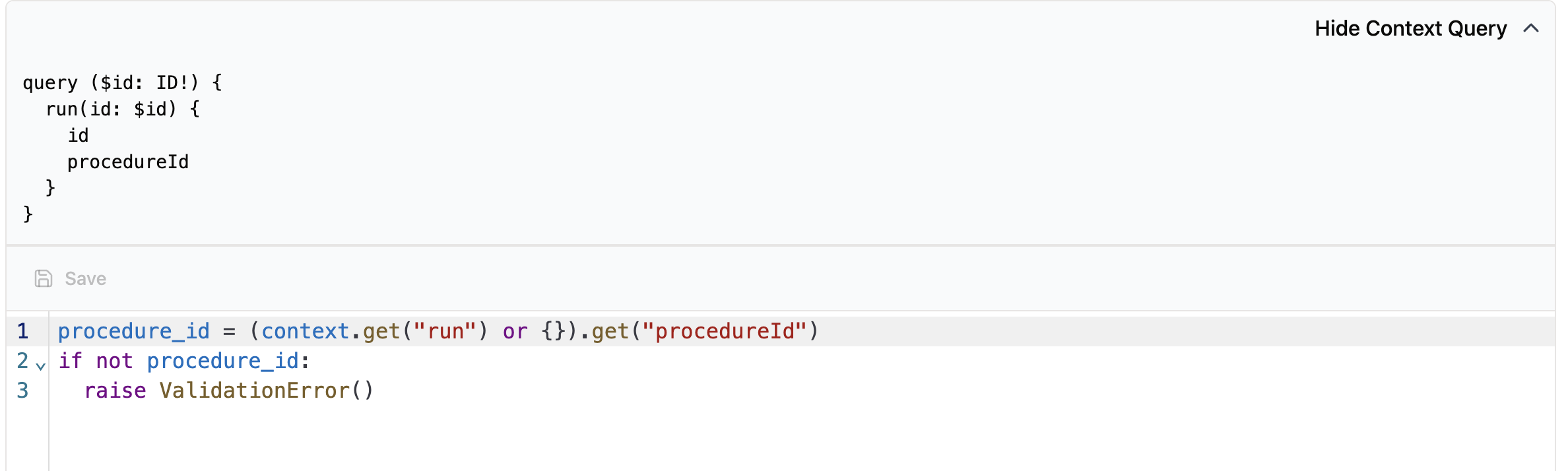
Action 240 - On CREATE RUNS, selects procedureId in context and ensures it is filled out
When a Run is created, both Actions are triggered. They are squashed together and the log looks like this:
Action Execution Log for creating a Run with the above Actions enabled
#### ValidationError
A `ValidationError` class is defined and included in all execution logs.\
This class standardizes error handling across Actions. If a `ValidationError` is thrown within Action code, the Action ID and name are automatically injected into the executed code, making it clear which Action caused the failure.
#### run\_rule
Wraps each of the triggered Actions into a single executable unit. This is where code from each Action is combined and ran. The ordering is based on `id` of the action.
#### Execution Context (ctx)
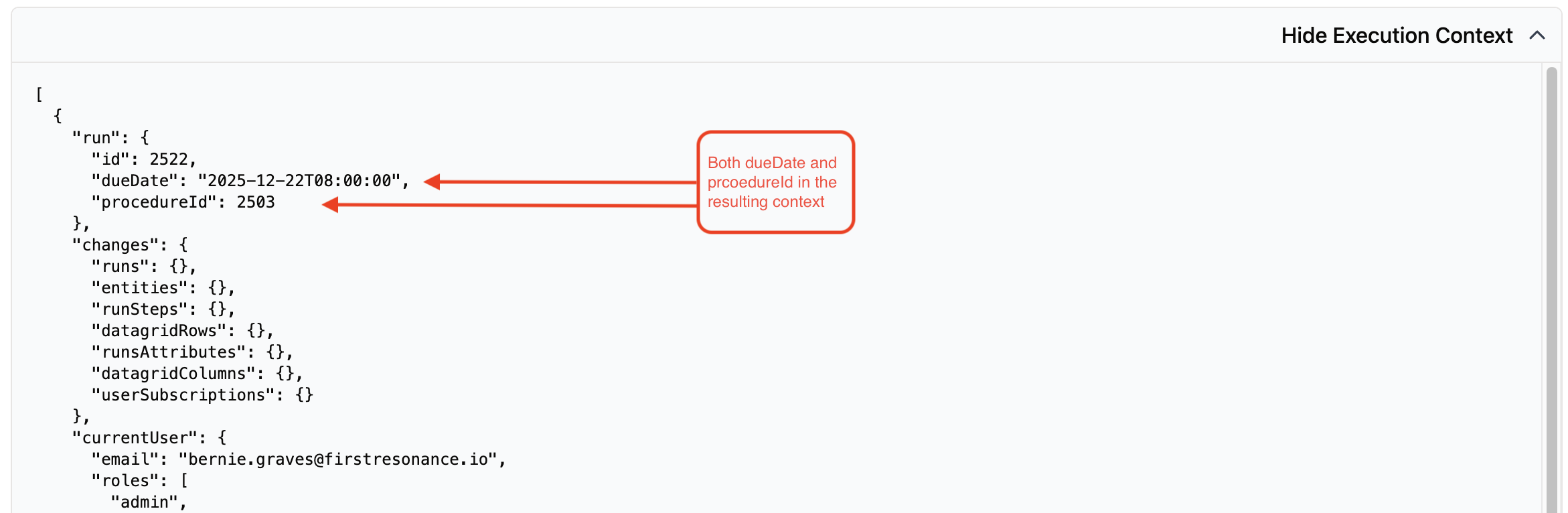
The `ctx` object represents the **combined context** for all squashed Actions. Each Action declares the specific fields it needs in the context query. During squashing all requested fields are merged into a single context object.
From the example:
* Action 535 requests `dueDate` in the context
* Action 240 requests `procedureId` in the context
The resulting context contains both:
---
# Agent Instructions
This documentation is published with GitBook. GitBook is the documentation platform designed so that both humans and AI agents can read, navigate, and reason over technical content effectively. Learn more at gitbook.com.
## Querying This Documentation
If you need additional information that is not directly available in this page, you can query the documentation by asking a question.
Perform an HTTP GET request on the following URL with the `ask` and `goal` query parameters:
```
GET https://manual-v2.firstresonance.io/os/ion-actions/action-execution-logs.md?ask=&goal=
```
`ask` is the immediate question: it should be specific, self-contained, and written in natural language.
`goal` is what the user is ultimately trying to achieve, the reason they need the answer. Sharing it helps GitBook give you a better, more relevant answer. A goal is most helpful when it describes the outcome the user wants rather than restating the question. For example, with `ask=how do I create an API token`, a goal like `automate deployments from our CI pipeline` lets GitBook tailor the answer to that use case.
The response will contain a direct answer to the question and relevant excerpts and sources from the documentation.
Use this mechanism when the answer is not explicitly present in the current page, you need clarification or additional context, or you want to retrieve related documentation sections.